Workspace
The Workspace manages your existing scenarios and simulations in My Projects and My Scenarios. Use the Builder to create a custom scenario, create a scenario from a template, or upload a custom scenario from a zip archive. All three kinds appear together in the Workspace.
Projects
Projects allow you to group and organize scenarios. They act as folders. Projects are part of the Basic and Premium plans. Guests use the Starter plan, which does not include projects.
- Multiple projects can have the same name.
- When creating a new project, a comment/description can be optionally added.
Warning
Deleting a project will also remove all the contained scenarios (and their respective simulation runs).
Options to delete and rename a project are available when clicking the dropdown button.
To navigate inside a project, simply click on the project card. This will open the dedicated project view, listing all contained scenarios.
Info
Nested projects (a project inside another project) are currently not supported.
Scenarios
Simulation scenarios will be listed as cards in the My Scenarios section. A network preview-image is shown at the top of the card, followed by the scenario name, the creation date and number of simulation runs performed using it. A button to start a simulation is also present in the scenario card.
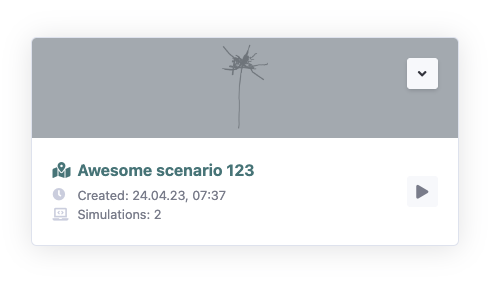
Opening the dropdown menu will list the following options:
Run simulation: Open the Simulator, selecting this scenario.Download: Get a ZIP with the scenario files.Duplicate: Create a new scenario as a copy of the existing scenario. Duplicating does not use up your scenario-creation quota.Rename: Change the name of the scenario.Move to ...: Move this scenario to an existing project.Move to workspace: This option is only available if the scenario is inside a project.Properties: Open a modal with some scenario properties such as area size and number of edges (among others).Delete: Deleting a scenario also removes all its simulation runs.
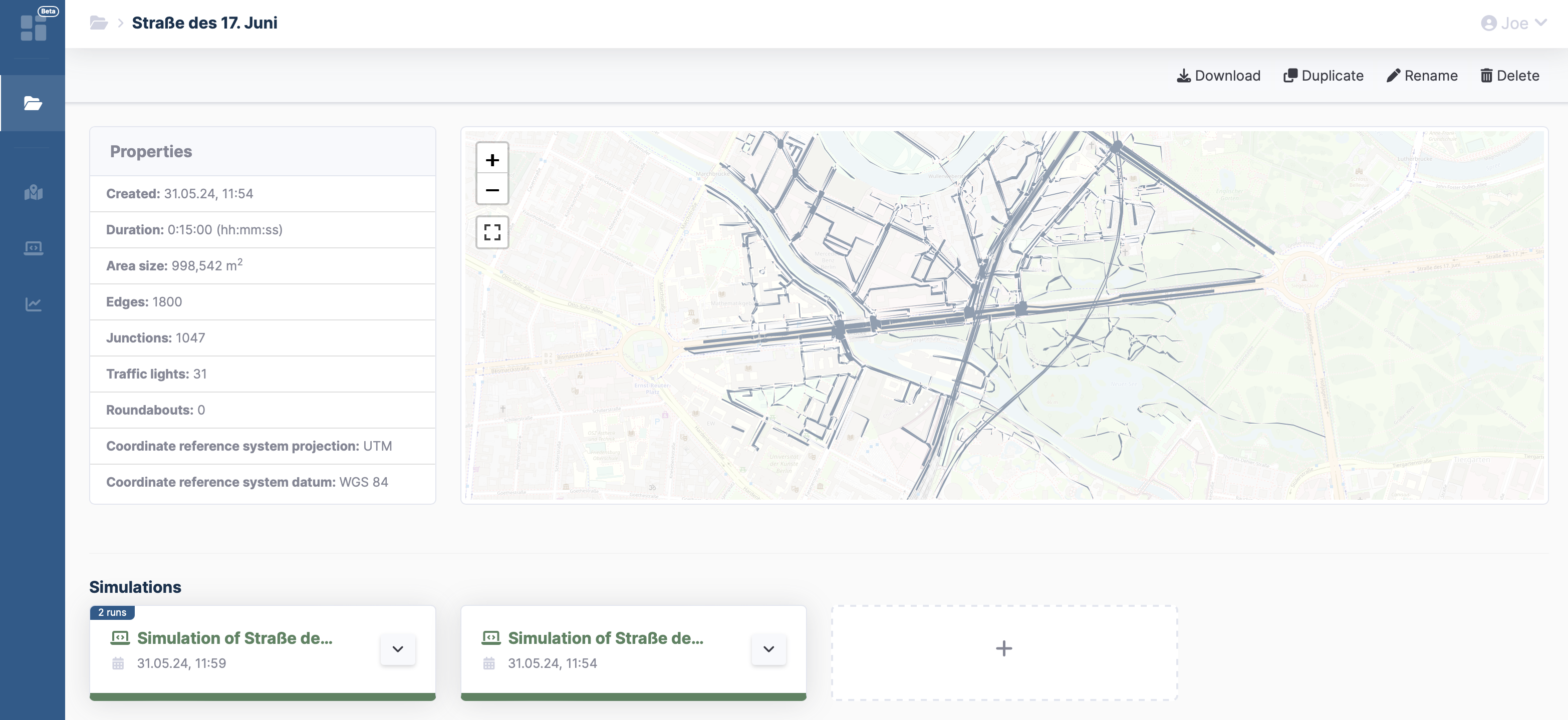
Clicking on a scenario will open the Scenario view, which is a detailed overview of the selected scenario, containing its properties as well as a map with the network. All simulation runs performed using this scenario are also listed in this view.
Scenario templates
Users whose plan includes scenario templates (Basic and Premium; the Starter plan used by guests does not) can create a scenario from a template in the Builder or through a template card on the Dashboard. Each creation produces an independent copy in your workspace and uses one scenario creation of your rolling 24-hour quota. Edit, duplicate, simulate, export or delete that copy using the ordinary actions allowed by your plan. Template changes or removal do not change existing copies.